Documentation
Create professional LinkedIn cover images in seconds using AI. Simply enter your professional information, generate templates, and customize the design to match your personal brand.
Getting Started
- Open the LinkedIn Cover Image Generator.
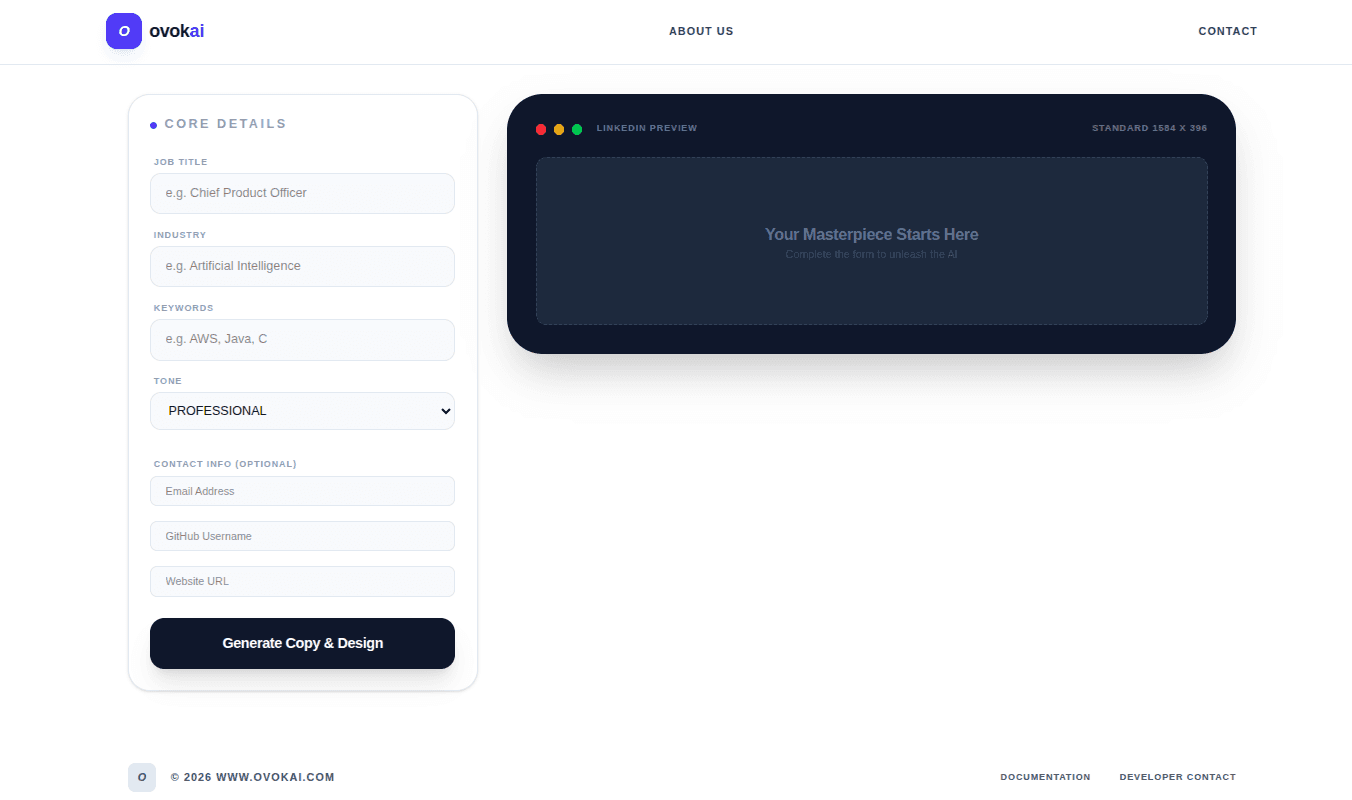
- Use the left sidebar to enter your professional details.
- Click Generate Templates.
- The main display area will show AI-generated cover image designs.
- Select and customize the template you like.
Information to Enter
Fill in the following fields to generate personalized templates.
| Field | Required / Optional | Description |
|---|---|---|
| Job Title / Role* | Required | Your main professional role (example: Software Engineer, Product Manager). |
| Industry* | Required | Choose the industry you work in (Technology, Finance, Healthcare, etc.). |
| Keywords* | Required | Add important skills or expertise (AI, Marketing, Web Development). |
| Tone Selection* | Required | Choose the style of your cover image: Professional, Bold, Minimal, or Creative. |
| Contact Info | Optional | Add your email, GitHub, portfolio, or website if you want it displayed. |
Generating Templates
- After completing the form, click Generate Templates.
- The AI will create 6 different cover image designs.
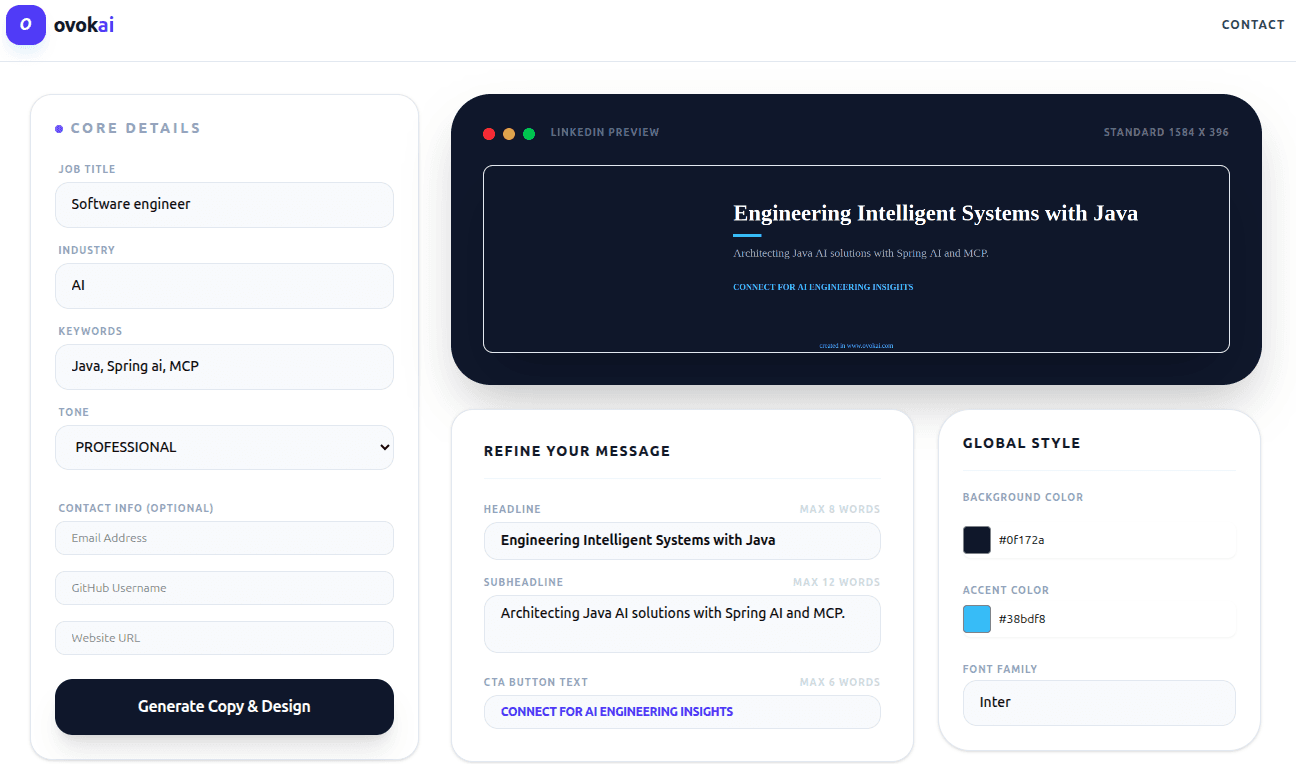
- Each template includes a headline, subheadline, and optional call-to-action.
- Browse the templates and choose the one you prefer.
Editing and Customizing Your Template
Once you select a template, you can customize every text element and design setting.
Important: To edit or style a text element, you must first click on the element's input(headline, subheadline, or CTA). The customization controls will then apply to the selected element.
- Select a headline, subheadline, or CTA input.
- Edit the text content of the selected element.
- Change the text color of the selected element.
- Adjust font size.
- Modify letter spacing.
- Change font weight (light, normal, bold).
- Select a different font family.
- Change the background color of the template.
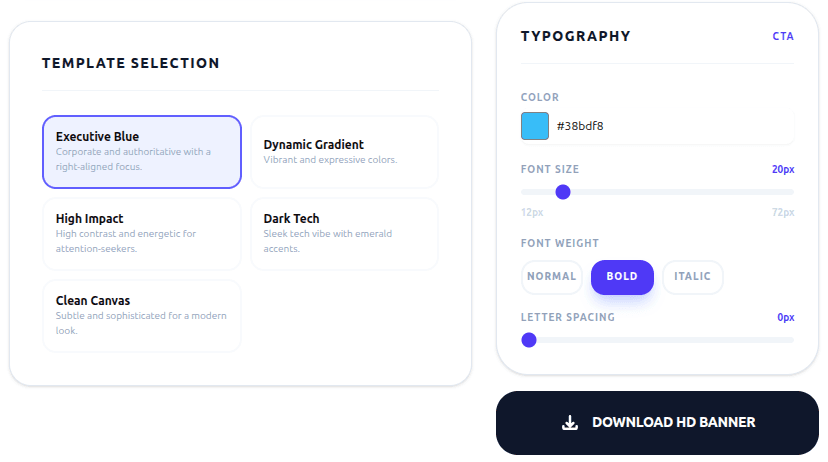
These options allow you to fully personalize your LinkedIn cover image and match your personal brand.
Tips for Best Results
- Use clear and specific professional keywords.
- Choose a tone that matches your industry.
- Keep headlines short and impactful.
- Use customization options to match your personal brand.
Frequently Asked Questions
Q: Can I regenerate templates if I don't like them?
A: Yes. Simply click Generate Templates again.
A: Yes. Simply click Generate Templates again.
Q: Can I edit the generated text?
A: Yes. You can modify the headline, subheadline, and CTA anytime.
A: Yes. You can modify the headline, subheadline, and CTA anytime.
Q: Can I customize the design?
A: Yes. You can change colors, fonts, spacing, and other design elements.
A: Yes. You can change colors, fonts, spacing, and other design elements.
Q: Is my personal information stored?
A: No. Your inputs are only used to generate templates and are not saved.
A: No. Your inputs are only used to generate templates and are not saved.